
Few things are more frustrating for gamers than logging into Steam, ready to join friends, only to realize your status stubbornly refuses to show as online. Whether you’re trying to coordinate a multiplayer session or simply want your friends to see you’re active, this issue can feel confusing and inconvenient. Fortunately, in most cases, the fix is surprisingly simple once you understand what might be causing it.
TLDR: If your Steam status is not showing online, it’s usually due to privacy settings, incorrect Friends status, connection issues, or client glitches. Start by checking your Friends status and profile privacy settings, then restart Steam and verify your internet connection. If that doesn’t work, clear the Steam cache, update the app, or reinstall it. In rare cases, firewall or server issues may be responsible.
Why Steam Status Might Not Show Online
Before diving into fixes, it’s helpful to understand why this happens. Steam’s online presence is controlled by multiple systems:
- Friends & Chat status
- Profile privacy settings
- Steam server connectivity
- Local network permissions
- Client glitches or outdated software
If even one of these components malfunctions or is configured incorrectly, your status may appear offline—even when you’re actively browsing your library.
1. Check Your Steam Friends Status
This may sound obvious, but it’s the most common cause. Steam does not automatically set you to “Online” every time.
To verify your status:
- Open Steam.
- Click on Friends & Chat in the bottom-right corner.
- Click the small dropdown arrow next to your profile name.
- Make sure Online is selected instead of:
- Offline
- Invisible
- Away
- Busy
If you’re set to Invisible, you can still use Steam normally, but friends will see you as offline.
Image not found in postmeta2. Verify Profile Privacy Settings
Even if you’re set to Online, strict privacy settings can prevent others from seeing your activity.
To check privacy settings:
- Go to your Steam Profile.
- Click Edit Profile.
- Select Privacy Settings.
- Ensure the following are set appropriately:
- My Profile → Public or Friends Only
- Game Details → Public or Friends Only
- Friends List → Visible if desired
If your profile is set to Private, friends may not see your online presence correctly.
Tip: After adjusting settings, restart Steam to refresh your status.
3. Restart the Steam Client Properly
Sometimes, Steam simply fails to sync properly with its servers.
Instead of just closing the window, fully exit Steam:
- Click Steam (top-left corner).
- Select Exit.
- Wait 10–20 seconds.
- Reopen Steam.
For extra certainty, open Task Manager (Windows) or Activity Monitor (Mac) and verify no Steam processes are still running.
A proper restart refreshes:
- Friend list synchronization
- Server connection
- Presence updates
4. Check Steam Server Status
Occasionally, the problem isn’t on your end at all.
Steam servers can experience downtime or partial outages affecting:
- Friends & chat services
- Status updates
- Game presence tracking
If multiple friends are also appearing offline unexpectedly, this may indicate a server issue.
You can confirm this by:
- Checking Steam-related forums
- Visiting Steam status tracking websites
- Looking at community reports on social media
If servers are down, the only real fix is patience.
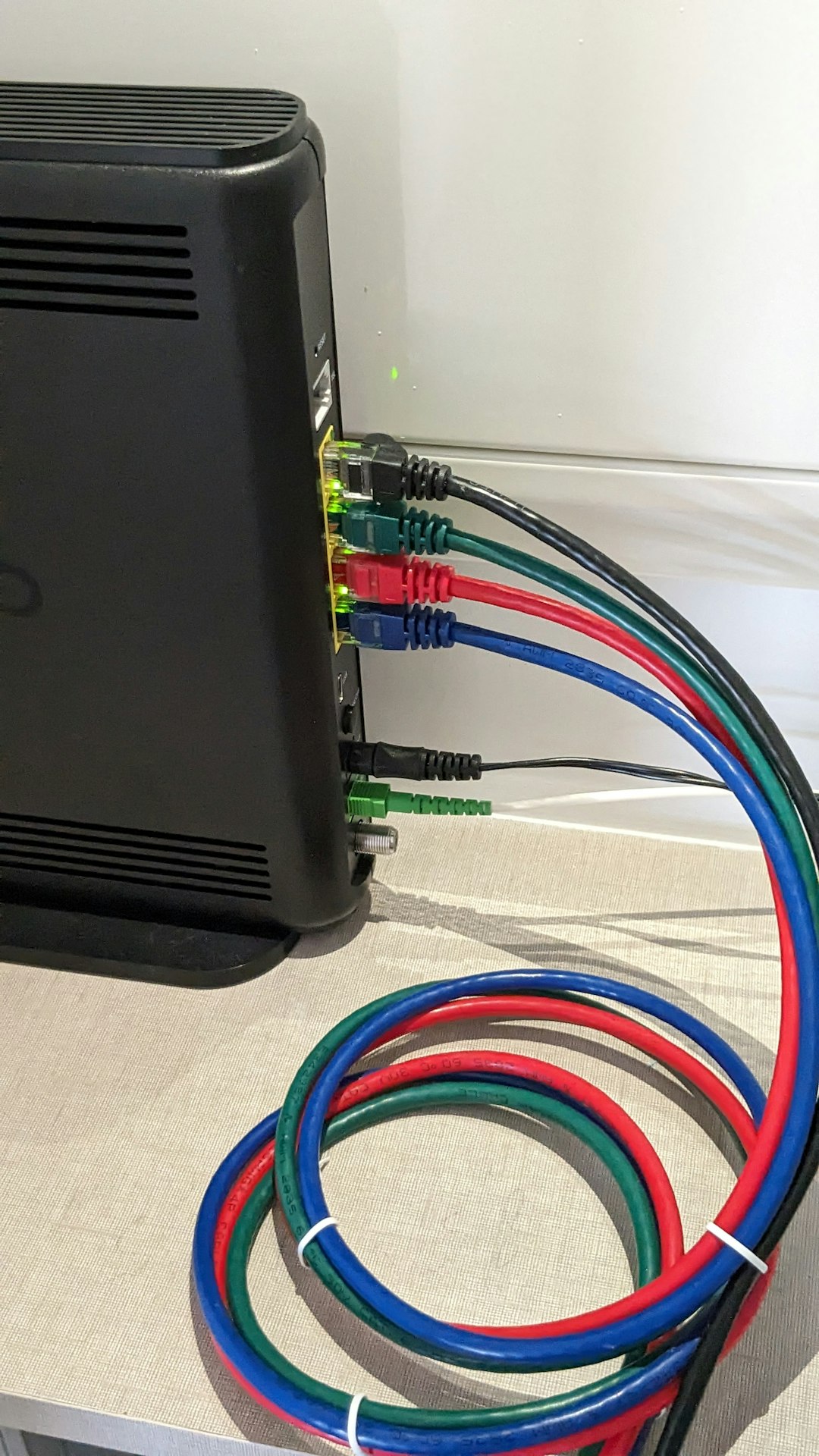
5. Refresh Your Internet Connection
Steam requires a stable, uninterrupted connection to maintain online presence. Even brief network interruptions can cause your status to desync.
Try:
- Restarting your router
- Switching from WiFi to Ethernet
- Disabling VPN temporarily
- Testing internet speed and latency
VPNs and firewalls are especially common culprits. They may block certain Steam services while allowing others to function normally.
6. Clear Steam Download Cache
A corrupted cache can interfere with Steam functionality—including online presence.
To clear the download cache:
- Open Steam.
- Go to Settings.
- Select Downloads.
- Click Clear Download Cache.
Steam will restart automatically and prompt you to log in again.
This process removes temporary files that may be interfering with status synchronization.
7. Update Steam
An outdated client can behave unpredictably.
Steam generally updates automatically, but you can manually check:
- Click Steam (top-left corner).
- Select Check for Steam Client Updates.
Install any available updates and restart the application.
Updates often include:
- Bug fixes for Friends & chat
- Server communication improvements
- Security patches
8. Reinstall Steam (Without Losing Games)
If nothing else works, reinstalling Steam can resolve persistent glitches.
Before uninstalling:
- Navigate to your Steam installation folder.
- Backup the steamapps folder (this contains your games).
Then:
- Uninstall Steam.
- Download the latest version from the official site.
- Reinstall and restore the steamapps folder if necessary.
This refreshes core system files without requiring you to redownload your entire library.
9. Check Firewall and Antivirus Settings
Firewalls sometimes block certain Steam ports needed for online presence updates.
Ensure that:
- Steam.exe is allowed through your firewall
- Incoming and outgoing connections are permitted
- Antivirus software isn’t sandboxing Steam
If necessary, temporarily disable your firewall to test whether it’s causing the issue.
Important: Re-enable protection immediately after testing.
10. Try Logging in on Another Device
To determine whether it’s an account issue or device-specific problem, try:
- Logging into Steam via browser
- Using the Steam Mobile App
- Signing in on another computer
If your status appears online there, the issue is likely tied to your primary device’s configuration.
11. Make Sure You’re Not in Offline Mode
Steam has a dedicated Offline Mode designed for single-player gaming without an internet connection.
To disable it:
- Click Steam
- Select Go Online (if visible)
If you see “Go Online,” that means you’re currently offline—even if your internet works.
Advanced Troubleshooting (Rare Cases)
If all else fails, consider these deeper fixes:
- Run Steam as Administrator
- Flush DNS (Command Prompt → ipconfig /flushdns)
- Reset network settings
- Update network drivers
These steps are rarely necessary but can resolve obscure connectivity mismatches.
When It’s Not Actually Broken
Sometimes Steam is working perfectly—but your expectations are slightly off.
For example:
- Friends may also be set to Invisible
- Steam mobile presence can override desktop view
- Game-specific privacy settings may hide activity
Steam’s ecosystem is layered, and small toggles can produce confusing results.
Final Thoughts
Steam status issues are usually minor and fixable in just a few minutes. In most cases, the problem boils down to one of three things: incorrect status settings, privacy configuration, or temporary connectivity glitches.
Start simple—check your Friends status and profile privacy. Then move outward to connection checks, cache clearing, and updates. Reinstallation and firewall adjustments should only be necessary in stubborn cases.
Once your Steam status is correctly set to Online, you’ll be visible, ready to invite friends, join multiplayer sessions, and fully enjoy what the platform does best: bringing gamers together.