
Exporting graphics from Canva is usually an intuitive and smooth process, but for professionals who rely on precise design fidelity—especially in brand assets—there are certain technical snags that can present unexpected issues. One such issue recently came to light: the inability of the Canva desktop app to export SVG files with embedded fonts intact. For users who rely on brand-specific typography, this can be more than a minor inconvenience—it can be a dealbreaker.
TLDR (Too long, didn’t read)
The Canva desktop app currently fails to export SVGs with fonts embedded, which can lead to missing or incorrect typography in brand assets. The issue compromises visual consistency, especially when designs are reused or sent to printers and developers. A workaround exists using the browser version of Canva together with the “outline fonts” setting, which flattens the typography into vector shapes, preserving the intended appearance. While not ideal, this workaround ensures brand integrity where it matters most.
Understanding the Problem: Fonts and Branding
Branding is all about consistency. Whether it’s your logo, social media graphics, or marketing collateral, every element needs to align with established brand guidelines—which prominently include font choices. Professional designers know how crucial it is for fonts to render exactly as specified. Unfortunately, when exporting SVGs via the Canva desktop app, designers have found that:
- Fonts don’t remain embedded in the exported SVG files.
- On re-opening or testing the design in other programs, fonts often default to generic substitutes.
- This causes misalignment, kerning issues, and inconsistent presentation of text elements.
The bug (or limitation) appears to be specific to the desktop app environment, as browser-based exports behave differently. Despite multiple updates and feedback by users, the issue persists—especially problematic for professionals generating logos, badges, or SVGs for websites where retaining font fidelity is critical.
What Happens During SVG Export in Canva Desktop?
SVG—Scalable Vector Graphics—is a popular format for online visuals because it supports vector information (which scales cleanly) and text elements (which can remain editable). When fonts are embedded properly in an SVG file, any viewer or application opening the file can render the text as intended—even if the font is not installed on that system.
However, during export in the Canva desktop app:
- The app fails to embed fonts or convert them properly into vector outlines.
- Instead, fonts are referenced externally, which breaks the intended look when opened elsewhere.
- This especially affects logos or titles that rely on unique commercial fonts.
This results in brand dilution, where your identity becomes inconsistent across different platforms. A simple logo exported via Canva’s desktop app might look perfectly fine within Canva but get mangled on a client’s presentation or your own website.
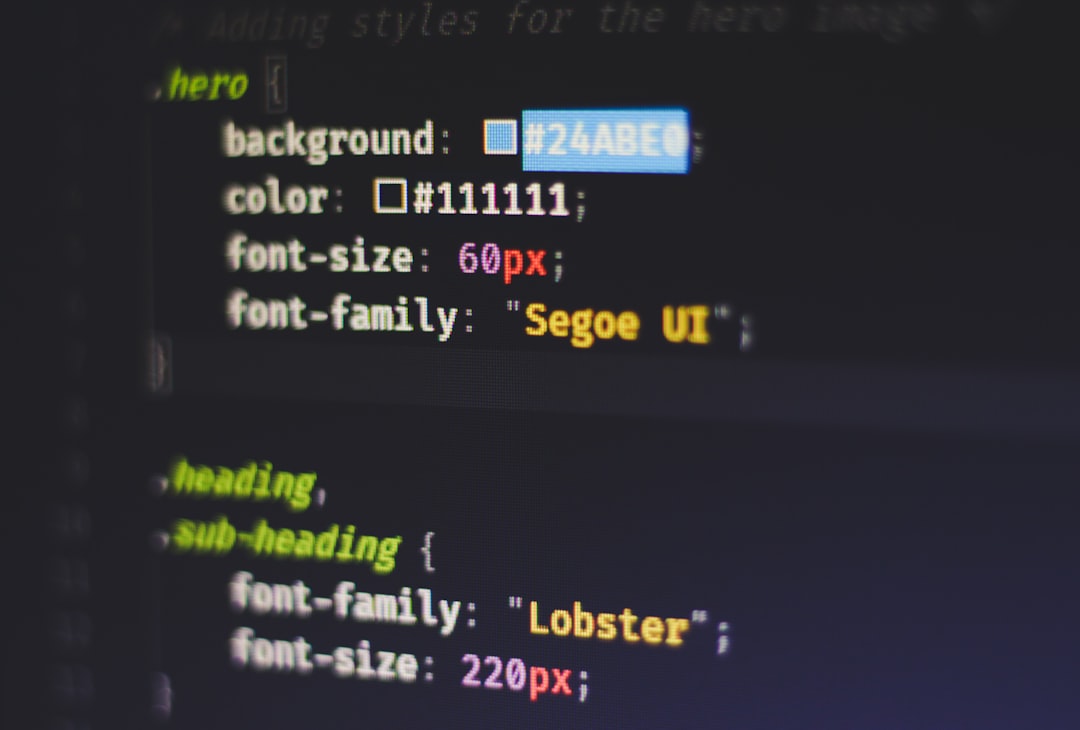
Why Embedded Fonts Matter
To explain why this issue is so critical, let’s look at the role of embedded fonts in SVG files:
- Portability: Embedded fonts ensure that text looks the same on different devices, even if those devices don’t have the font installed.
- Preserved Formatting: Embedding or converting to outlines preserves spacing, kerning, and sizing as they appear in the design.
- Web-Ready: For developers, SVGs with consistent appearance are easier to integrate into responsive layouts and mobile web designs.
Without proper font embedding or outlining, designers face the risk of final designs looking broken—letters that are off-brand, misaligned, or simply ugly. This is especially problematic in design assets such as:
- Company logos
- Event badges
- Branded icons
- Interactive infographics
The Workaround: Exporting With Outlined Fonts in Browser
Fortunately, for those hit by this limitation in the desktop version, there is a workaround that has proven reliable: using the browser version of Canva plus the “outline fonts” export option. Here’s how to do it:
Step-by-Step: Exporting SVGs with Outlined Fonts
- Open your project in Canva via a web browser (Chrome, Firefox, etc.).
- Click Share > Download.
- Select File type: SVG.
- Enable the checkbox: “Outline text” before downloading.
- Click Download. The file will save with all text elements converted to vector outlines.
This method doesn’t just preserve appearance—it also provides greater compatibility with software like Adobe Illustrator, Figma, Sketch, and various website builders. With text now treated as vector shapes, the concern about missing fonts disappears. Outline conversion means the typographic shape is “baked into” the SVG.
However, it’s important to note that outlined text is no longer editable. Once a letter is turned into a shape, you can’t just double-click to change the wording. This is why it’s recommended to keep a backup version with live fonts inside Canva for future edits—and only export outlines for final files.
Developer and Print Benefits
Developers particularly appreciate outlined SVG exports for use in code because:
- They load faster since there are no font dependencies to resolve.
- They guarantee exact visual fidelity even in strict sandboxed environments.
Likewise, print production systems often require vector outlines. It’s standard practice in the print industry to request outlined text in logos to avoid font substitution issues in print-ready PDFs. Without outlines, printing software may swap fonts and distort brand visuals in high-resolution materials.
Why Canva Hasn’t Fixed This Yet
It’s unclear why the Canva desktop app lacks the same SVG export controls as the browser version. Possible reasons include:
- The desktop environment may not support certain web-based font rendering technologies.
- SVG export functionality may be pooled from a different rendering engine.
- Outlining and font embedding may require licensing considerations.
Regardless, users have taken to forums and Twitter, reporting this issue repeatedly. As Canva continues to mature and attract professional designers, this kind of export limitation feels like a major oversight.
Tips for Maintaining Brand Integrity in Canva
If you use Canva to create assets for your brand, here are a few best practices to maintain consistency:
- Always use the browser version when precision on export matters.
- Create a backup copy of the design with editable text.
- Export both “Editable” and “Outlined” versions of your SVG for versatility.
- Test the SVG in multiple viewers to confirm font retention or shape integrity.
Conclusion
The Canva desktop app’s failure to export SVG with embedded or outlined fonts is a significant problem for professionals concerned with brand consistency. But thanks to the browser-based export options—specifically, the “outline text” feature—there is a viable workaround that ensures your visual assets retain their intended look across platforms and devices. While Canva has come a long way in offering powerful tools for non-designers and professionals alike, this case remains a reminder that sometimes the web version still edges out the desktop counterpart for mission-critical tasks.
Until the issue is resolved, browser exports with “outlined fonts” remain the best practice. Being aware of this method can save hours of frustration and help keep your brand visuals on point, wherever they go.