
Your MacBook Pro is your trusty companion. It powers through your work, streams your favorite shows, and even serves as the occasional dinner tray (though we don’t recommend that). But one day, you open it up and… oh no! There’s an odd orange discoloration on the screen. What gives?
TL;DR (Too Long; Didn’t Read)
Orange discoloration on your MacBook Pro screen can be caused by hardware issues, overheating, or even software settings. Sometimes it’s a sign of a failing display, and in other cases, it’s just Night Shift doing its thing. It’s best to diagnose the cause step-by-step. Some fixes are simple, while others may involve a trip to the Apple Store.
What Is That Orange Glow?
If your display looks like it’s been dipped in orange juice, don’t panic just yet. That warm hue could have a few different causes. Let’s explore the most common ones:
- Night Shift
- True Tone display
- Overheating
- Hardware failure
- Graphics card trouble
Simple Fixes First
Sometimes the fix is just a couple of clicks away. Let’s check the easy stuff first:
1. Check for Night Shift
Night Shift adjusts the screen’s color temperature in the evening to reduce blue light. This makes the screen look warmer—aka more orange.
To disable:
- Go to System Settings > Displays.
- Look for the Night Shift tab.
- Turn it off or adjust the schedule.
2. Turn Off True Tone
True Tone is another Apple feature designed to make displays easier on the eyes. It tweaks the color balance based on the room’s lighting. Cool? Yes. Sometimes orangey? Also, yes.
To turn it off:
- Go to System Settings > Displays.
- Uncheck the box next to True Tone.
If the screen color goes back to normal, you’re good to go!
Still Orange? Let’s Go Deeper
If those settings didn’t help, something more serious might be going on.
3. Are You Overheating?
MacBooks are smart. When things get hot, they might lower screen brightness or shift colors to reduce strain and save power. Instead of red flags, you might see orange displays.
Ask yourself:
- Is the fan running loudly?
- Is your Mac scalding hot to touch?
- Have you blocked the vents?
If yes, let it cool down. Shut it off for a bit. Clean your vents. Give it air to breathe!
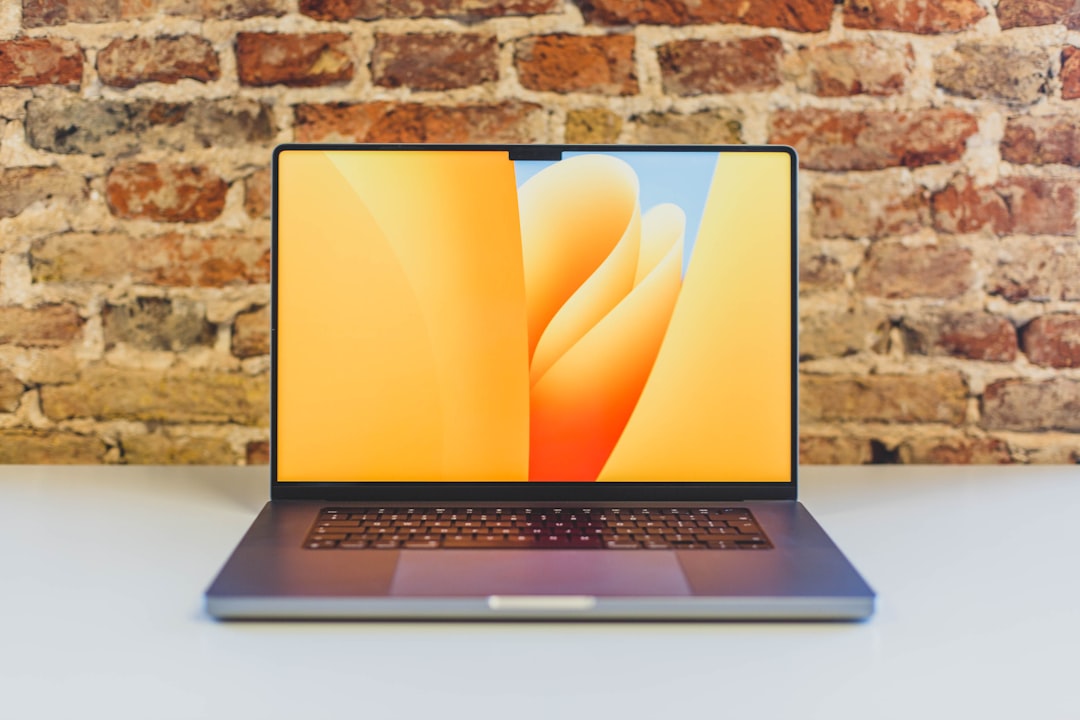
4. External Display or Just the Built-in Screen?
Try plugging your MacBook into an external monitor. If the orange tint only appears on the built-in screen, you might be looking at a screen issue. If it shows up on both screens, the problem could be with the graphics card or software.
Color Profiles Can Be Sneaky
Every display has a color profile. It tells the screen how to display colors. If your Mac is using the wrong profile, that orange tint might just be bad math.
To check your color profile:
- Go to System Settings > Displays.
- Click Color Profile.
- Swap it out for a default one like sRGB IEC61966-2.1.
Still orange? Then…
Hardware Issues: The Not-So-Fun Part
If none of the above solve the issue, it might be time to brace for a hardware problem. Here’s what could be happening:
1. Failing Display
MacBook screens are made of multiple layers. If any of these start to degrade (especially the backlight), they can mess with the color. It might start subtle with a warm tint and get worse over time.
2. Loose Cables
A loose or damaged display cable could also mess with screen colors. Think of it like a bad handshake between the graphics card and the screen. The result? Strange hues, including that stubborn orange.
3. Burn-In (Yes, Really)
Though more common with OLED screens, burn-in can also affect some MacBook LCDs, especially when static images remain for a long time. If you always have the same app open in the same spot, that static image might wear itself into the screen.
It’s rare, but not impossible.
Try a PRAM and SMC Reset
Two magical resets that Mac owners swear by:
Resetting PRAM:
This can help reset display settings to factory defaults.
- Turn off the MacBook Pro.
- Turn it back on and immediately press and hold: Option + Command + P + R.
- Hold for about 20 seconds, then release.
Resetting SMC (for Intel Macs):
Handles system-level functions, like cooling and battery management.
- Shut down your Mac.
- Hold Shift + Control + Option on the left side of the keyboard, then press the power button.
- Hold for 10 seconds, then release.
- Turn on the Mac normally.
Did it help? If yes, happy dance. If not… keep reading.
Time to Call in the Pros?
If the orange isn’t going away and it’s starting to interfere with daily use, it might be time to reach out to Apple.
- Visit an Apple Store or authorized service provider.
- You might still be under warranty or have AppleCare+
- They can run diagnostics and tell you exactly what’s up.
Prevention Tips: Stay Orange-Free
Here are a few quick habits that can reduce the chance of discoloration in the future:
- Keep your Mac well ventilated.
- Don’t keep static images on-screen all day.
- Avoid using high brightness for extended periods.
- Use a protective case—spills and drops can damage screens internally.
- Restart your Mac once in a while. Even your laptop needs a break!
The Bottom Line
Orange discoloration on a MacBook Pro screen might seem scary at first. But many times, it’s something simple like a setting or overheating. A quick settings check could solve everything in minutes.
But if it’s deeper—like hardware malfunction—it’s still fixable. Just be sure to back up your data often and act quickly. The sooner you get it looked at, the better your chances of saving the screen—and your sanity.
Happy computing! 🍊