
For many avid readers, the Amazon Kindle is the perfect travel companion and bedtime buddy. But when your Kindle refuses to download books—even when your Wi-Fi connection is solid—the experience quickly becomes frustrating. You click “Download”, but nothing happens. A cloud icon lingers, mocking your anticipation of diving into a new story. Fortunately, this is a common issue with several working fixes.
TL;DR
If your Kindle refuses to download books despite having a strong Wi-Fi connection, don’t panic. The issue usually stems from software glitches, outdated firmware, or account synchronization problems. Restarting your Kindle, ensuring it has the latest updates, and re-syncing your account can often resolve the issue. In more persistent cases, a factory reset or using a different Wi-Fi network may do the trick.
Understanding the Problem
Downloading Kindle books should be a seamless process, yet users sometimes find their devices stuck—books stay in “Download Pending” mode or don’t appear on the device at all. This problem typically falls into one of a few key categories:
- Software Bugs: Minor firmware glitches can interfere with downloads.
- Account Sync Errors: Issues with Amazon’s servers or your account settings.
- Download Queue Conflicts: A backlog of pending downloads may cause bottlenecks.
- Corrupt Content: Sometimes, the eBook file itself is corrupt or incorrectly formatted.
With that in mind, let’s walk through the most effective fixes in order of simplicity and likelihood of success.
1. Restart Your Kindle
This may sound cliché, but restarting your Kindle is often the fastest way to kickstart a stuck download. Here’s how:
- Press and hold the power button for about 40 seconds.
- Release once you see the Kindle logo or the screen flickers.
- Wait for the device to reboot and try downloading your book again.
For newer Kindle models like the Paperwhite or Oasis, this reboot often resolves most download-related hiccups.
2. Check and Refresh Your Wi-Fi Connection
Even though your Kindle appears connected, there might be low-bandwidth issues, router restrictions, or temporary drops in connectivity. To refresh your connection:
- Go to Settings > Wi-Fi & Bluetooth.
- Tap your current Wi-Fi network and select Forget.
- Reconnect by selecting the network again and entering the password.
Pro Tip: Try connecting to a different Wi-Fi network temporarily—like your phone’s mobile hotspot—to test if the issue lies with your primary internet provider.
3. Make Sure Kindle Software Is Up to Date
An outdated Kindle operating system often leads to performance bugs. Here’s how to check for and install updates:
- Go to Settings > Device Options > Advanced Options > Update Your Kindle.
- If this option is grayed out, your device is already updated or connected to Wi-Fi improperly.
- If available, tap Update and allow the device to reboot once the update is installed.
Note: Kindle updates are usually automatic, but if they haven’t occurred in a while, you might need to do it manually.
4. Sync Your Amazon Account
If the book was recently purchased on another device (phone, laptop, etc.), it might not show up on your Kindle due to account sync delays.
To fix this:
- Swipe down from the top and tap Sync My Kindle.
- Wait for the sync to complete. If successful, your book should begin downloading.
If syncing doesn’t work, try deregistering and re-registering your device:
- Go to Settings > Your Account
- Select Deregister
- Sign in again using your Amazon credentials
This action can resolve many hidden connectivity and permission issues.
5. Remove and Re-Download the Book
Sometimes the downloaded copy is corrupted or partially downloaded. Removing the book and downloading it fresh can help:
- Go to your home screen or library and long-press the book title.
- Select Remove from Device.
- Return to your Library and tap the download icon again.
Be sure you’re connected to Wi-Fi throughout this process to avoid incomplete downloads.
6. Clear Kindle Storage
If your Kindle storage is nearly full, it may silently refuse new downloads.
To check storage usage:
- Go to Settings > Device Options > Storage Management.
- Remove samples, outdated periodicals, or books you no longer need.
A good rule of thumb is to keep at least 200MB of free space for system operations and downloads.
7. Check Content and Device Management on Amazon
Sometimes Kindle books aren’t delivered because they’ve been archived, or you accidentally purchased the wrong format (like Audible instead of Kindle).
Use the Amazon website to verify:
- Log into your Amazon account on a browser.
- Go to Account > Content & Devices.
- Find the book in question and click Deliver to > select your Kindle.
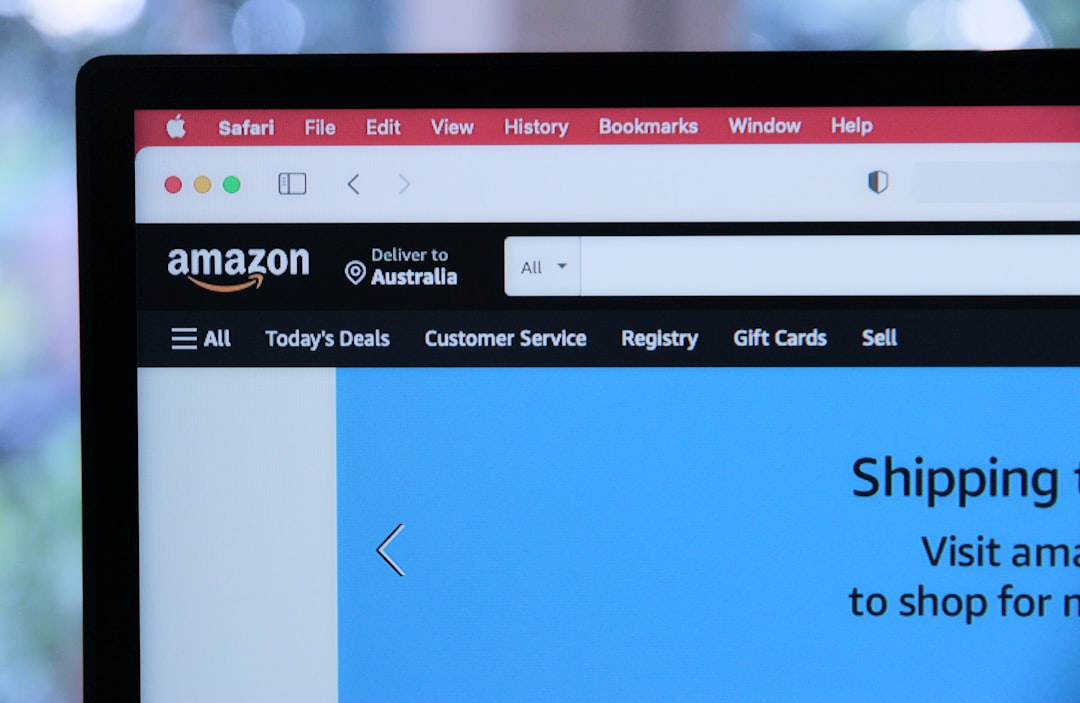
If you can’t find the book there, confirm it’s purchased and not still in your cart or order queue.
8. Perform a Factory Reset (As a Last Resort)
If none of the above solutions work, a factory reset might be necessary. This will erase everything and return your Kindle to its original state:
- Go to Settings > Device Options > Reset.
- Follow on-screen instructions and wait for the device to restart.
- Log in again and allow your library to re-sync.
Warning: This will delete all local data, so back up anything important before proceeding. Use this step only when all other fixes fail.
Bonus Tips
- Use Airplane Mode Trick: Toggle Airplane Mode on for 30 seconds, then off again. Sometimes this resets the network stack.
- Audit Your Download Queue: Too many books queued? Cancel all but one to test the connection.
- Check for VPN or Network Blocks: Some office or institutional Wi-Fi networks restrict access to Amazon servers.
Conclusion
While it’s undeniably annoying when your Kindle refuses to download books, the issue is usually minor and fixable with a bit of troubleshooting. Whether it’s syncing your account, updating the software, or simply restarting the device, these steps should get you back to uninterrupted reading in no time. If you’re methodical and patient, you won’t need to reach out to Amazon Support for help—though they’re always there if things get truly puzzling.
So the next time your Kindle acts up, just remember: the fix is often a few taps away.